
Doc Type
task
Audience
guest, member, client_owner, client_manager, client_ai_agent
Product Routes
/reserveScreenshots
Reserve a Court
Use /reserve when a guest or member is booking a court through the public club site
rather than through the admin dashboard.
This is not a single static form. It is a tenant-aware booking wizard that changes based on:
- how many sports the tenant offers
- the tenant's booking window and membership settings
- player count and whether the reservation needs multiple courts
- whether the tenant supports equipment rentals or bundles
- whether the guest is already an authenticated member
- whether split payments are allowed for that reservation
Step appearance matrix
| Step | Always shown? | When it appears | Why it matters |
|---|---|---|---|
| Sport | No | Multi-sport tenants | Determines the sport-specific inventory and pricing path |
| Date | Usually | After sport, or first for single-sport tenants | Uses the tenant booking window and member window rules |
| Players | Yes for normal court flow | Early in the wizard | Affects price, court-count logic, and split-payment logic |
| Court count | No | Larger group or multi-court bookings | Changes how availability and assignment work |
| Duration | Yes | Before time selection | Restricts which slots are valid |
| Time | Yes | After the booking shape is known | Starts the held-booking phase |
| Extras & Bundles | No | Only when rentable equipment or bundles exist | Changes totals and can affect checkout summary |
| Contact | No | When required contact data is still needed | Collects phone, email, and name for the held booking |
| Group | No | Some multi-player member-aware checkout states | Supports group or seat/payment responsibility logic |
| Review | Yes after hold | Before payment | Final checkpoint for totals, promo, waivers, and agreements |
| Payment | Yes when payment is due | After review | Collects payment and confirms the booking |
| Confirmed | Yes after success | Final state | The booking is confirmed and ready for post-booking actions |
What this flow does
The reserve flow does two separate jobs:
- collect the booking inputs needed to find an eligible slot
- create a temporary hold and move the guest through checkout until the booking is confirmed
That distinction matters. The flow does not become a real reservation only after payment. It first creates a held booking, then moves through contact, review, payment, and confirmation.
Baseline flow
For a multi-sport racquets tenant, the complete court-booking journey is typically:
- Sport
- Date
- Players
- Court count, if the party size requires multiple courts
- Duration
- Time
- Extras & Bundles, if the tenant has rentable equipment or bundles
- Contact, unless it can be skipped for an authenticated member with complete contact data
- Group, in some member-aware multi-player checkout cases
- Review
- Payment
- Confirmed
For a simpler tenant, several of those steps can be skipped automatically.
Step-by-step
1. Sport
If the tenant offers multiple sports, /reserve starts on sport selection.
If the tenant only offers one sport, this step is skipped and the guest starts directly on date selection.
Important action:
- choose the sport before any availability lookup happens
2. Date
The date step uses the tenant booking window, not a generic browser assumption.
Important behavior:
- guests only see dates within the allowed advance window
- members can have a larger booking window than non-members
- membership messaging can appear here to explain the member booking advantage
Important action:
- choose the date range that is actually eligible for the guest's current booking privileges
3. Players
The guest picks party size before the system resolves whether a single court is enough.
This step matters because pricing, multi-court requirements, and split-payment eligibility all depend on player count.
Important action:
- set the correct party size up front, because later steps depend on it
4. Court count, when needed
If the reservation needs multiple courts, the flow adds a court-count step.
That branch matters most for larger group bookings. The system can then look for multi-court availability instead of treating the booking like a normal single-court reservation.
Important action:
- confirm whether the booking needs adjacent courts instead of a single court
5. Duration
The duration step uses tenant-configured allowed durations.
Typical examples are 60, 90, or 120 minutes, but the set is tenant-controlled.
Important action:
- choose a duration that matches both the booking intent and the allowed slot inventory
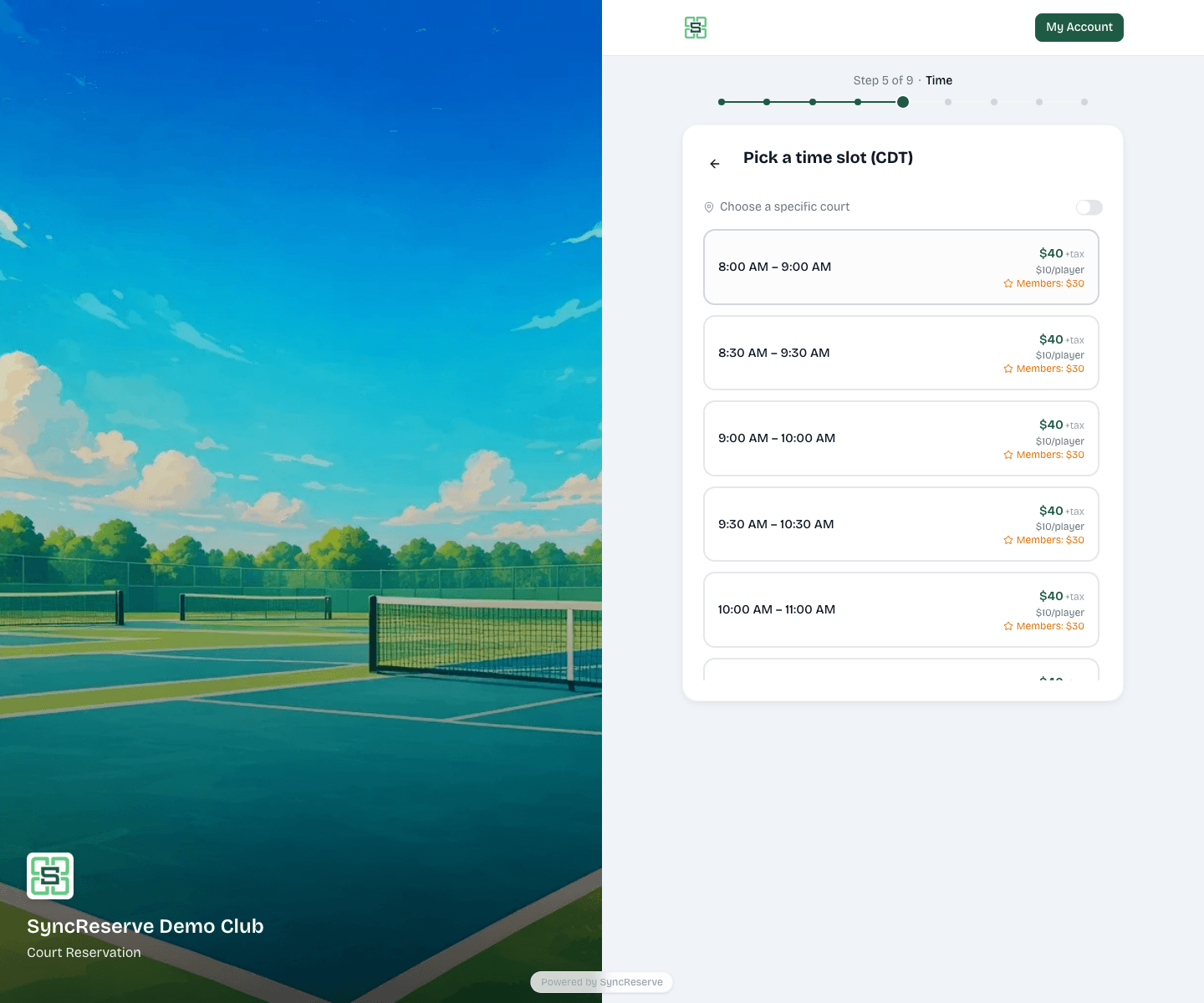
6. Time
The time step shows available slots for the chosen sport, date, player count, duration, and court count.
Important behavior:
- each slot shows public pricing
- member pricing can also be shown for comparison
- for single-court bookings, some tenants let the guest toggle into specific-court selection
- for multi-court bookings, the flow can automatically assign adjacent courts instead of asking the guest to pick each court manually
Selecting a time is the point where the flow moves from "searching" to "holding".
Important actions:
- choose the actual slot
- optionally toggle specific-court preference when the tenant allows it
- understand that a time selection starts the hold timer, not just a draft selection
7. Extras & Bundles
The extras step only appears when both of these are true:
- equipment rentals are enabled for the tenant
- the equipment catalog actually has rentable items
If either condition is false, the flow skips directly into checkout.
When extras are present:
- the held booking is already active
- the hold timer is visible
- equipment and bundles can affect the due-now amount and the final summary
Important actions:
- add optional equipment or bundles
- skip this step intentionally when no extras are needed
8. Contact
The contact step collects:
- phone number
- full name
It can also show:
- remembered contact details on the current device
- membership verification controls
- SMS disclosure and legal links
This step is sometimes skipped. If the guest is already an authenticated member and the system already has the required contact data, checkout can move forward without asking for the full contact form again.
Important actions:
- enter phone, email, and full name when prompted
- decide whether to remember details on the current device
- optionally verify membership if member pricing or member benefits should apply
9. Group, when required
Some multi-player member-aware checkout states can add a group step during checkout even if it was not shown earlier in the wizard.
This exists so the system can support seat or payment-responsibility decisions without forcing every booking through the same branch.
Important action:
- confirm group or seat behavior only when the checkout flow requires it
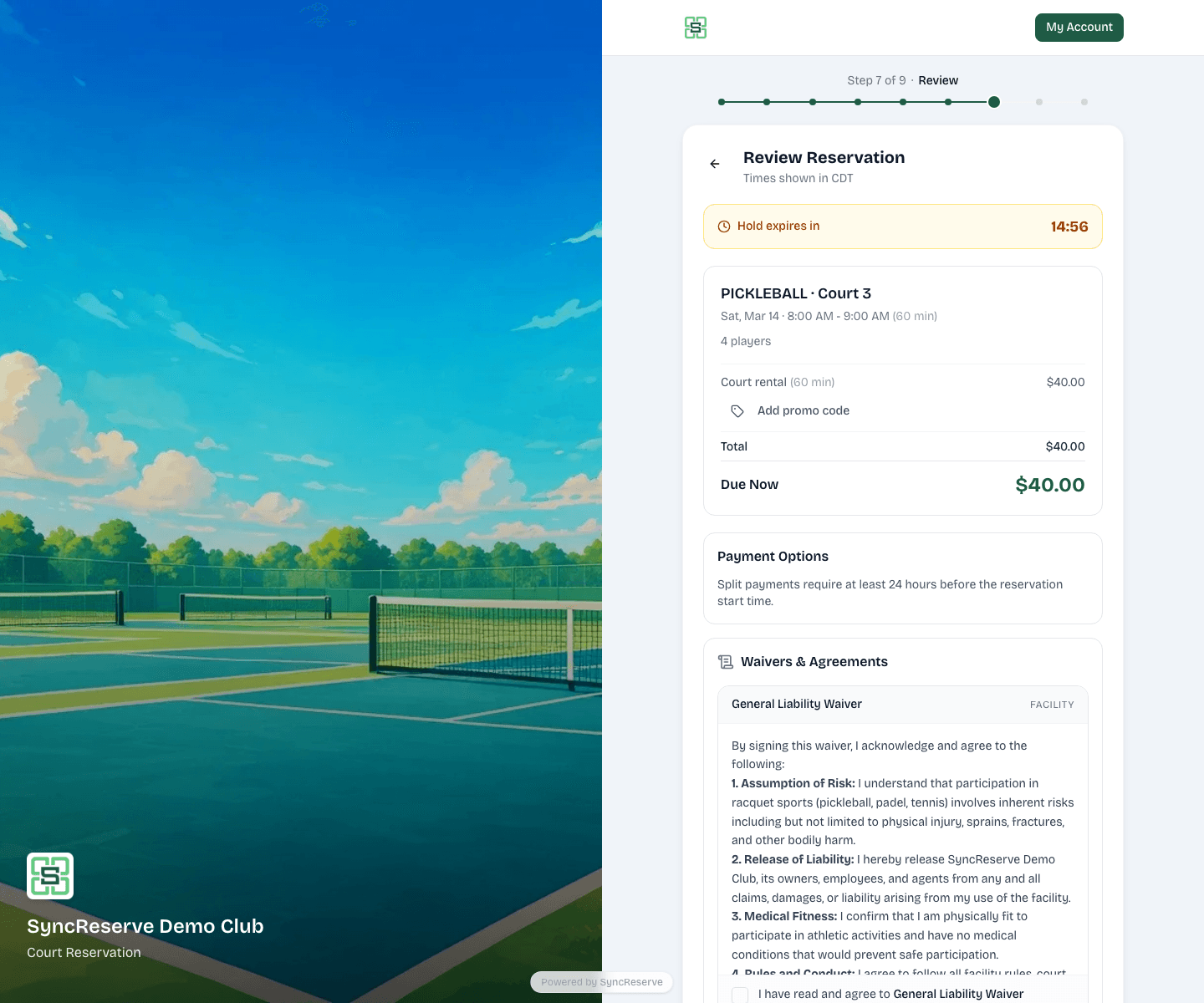
10. Review
The review step is where the flow becomes operationally important for support and revenue.
This step can include:
- the held booking summary
- court, date, time, duration, and player count
- equipment totals
- promo code entry
- total and due-now amounts
- waiver acceptance
- terms and cancellation acknowledgment
- marketing opt-in
- split-payment eligibility messaging
Promo code handling matters here. In the current flow, promo code entry is available in the review step, not only on the payment page.
Important actions:
- confirm the booking summary and due-now amount
- add or remove a promo code
- review split-payment availability or restrictions
- accept required waivers
- accept terms and cancellation acknowledgment
- decide on marketing opt-in
11. Payment
After review, the guest moves into payment.
This is where card collection and payment confirmation happen. For some bookings the due now amount can differ from the total, depending on the tenant's payment policy.
Important actions:
- complete payment using the available payment method
- wait for the booking to transition out of review and into confirmed state
- treat payment failure or cancellation as a real branch, not a cosmetic interruption
12. Confirmed
After successful checkout, the flow moves to the confirmed state.
The booking is no longer just held. It is now a confirmed reservation, and the guest can move into post-booking actions such as account review or booking management.
Important actions:
- use the confirmation screen to move back home or into booking/account management
- treat this as the canonical completed state of the guest booking flow
Important edge cases
Single-sport vs multi-sport tenants
Do not assume every club starts at the sport step. Single-sport tenants skip it.
Member booking windows
The visible date range can differ for members and guests. This is a real behavior, not just marketing copy.
Multi-court bookings
Large parties can introduce an extra court-count branch and different availability constraints. A large-party booking should not be documented like a normal 2-player or 4-player reservation.
Specific-court preference
Single-court tenants or bookings can expose a specific-court preference toggle. Multi-court flows can instead auto-assign courts side by side.
Equipment step skipping
The extras step is conditional. If the tenant has no rentable equipment items, the flow skips that step entirely.
Hold creation and expiration
Time selection starts a reservation hold. That hold can expire if checkout is not completed in time.
Operationally, that means:
- a guest can reach checkout and still lose the reservation if the hold expires
- support teams should treat "I was filling it out and it disappeared" as a real flow case
- the hold timer shown in checkout is part of the user experience, not decorative UI
Contact-step skipping
Authenticated members with complete contact details can skip parts of contact collection. Guests and unauthenticated users cannot rely on that shortcut.
Split payments
Split payment is not always available.
It depends on tenant settings and reservation eligibility. In the current review flow, guests can see a restriction message when split payment is unavailable for that booking. One explicit rule surfaced in the demo flow is that split payments require at least 24 hours before the reservation start time.
Promo codes, waivers, and agreements
Review is not just a recap page. It is where several blocking conditions can still stop progress:
- promo codes can change price
- waivers may need to be accepted
- terms and cancellation policy acknowledgment can be required
Payment and confirmation instability
Even after review is valid, payment can still fail or stall because of:
- payment form initialization problems
- cancelled or incomplete card entry
- hold expiration during checkout
- booking/payment state mismatches after a slow return flow
Support and AI guidance should treat payment and confirmation as separate states, not as one undifferentiated "checkout" step.
Support implications
Club operators should know this flow well because many support questions start here:
- why is a step missing or appearing?
- why can a member see more dates than a guest?
- why did the guest lose the slot?
- why is split payment unavailable?
- why is the guest being asked for contact details again?
- why did the total change after promo code or equipment selection?
AI-agent notes
- The route stays on
/reserve, but checkout mode is driven by query params such asbookingIdandstep. - The reserve wizard and checkout wizard are one continuous flow from the user's perspective, even though the system transitions from slot search into held-booking checkout.
- The most important checkout step names are
contact,review,payment, andconfirmed. - Do not assume every tenant sees the same step order.
If you need the role and navigation reference that explains how operators route questions
across the product, continue to /docs/reference/roles-and-navigation.